

Writing the report is the slowest part of most penetration tests. Faction is an open-source pentest reporting tool built to shrink that part, and we’ve just added three features to its text editors to make your pentest report writing faster and a bit more expressive:
- Themable code blocks with line numbers
- Mermaid diagrams for when an attack needs more than a paragraph to explain
- Content templates for the text you find yourself writing on every engagement
The short walkthrough video is at the end of this post. Here’s what each one does.
Code blocks with line numbers in your pentest report
Code in a Faction report now renders as a proper panel: a dark strip with a monospace font and, if you want it, a line-number gutter down the left.
You write one the way you already do in Markdown, with a fenced block. To number the lines, add start= to the opening fence with whatever number you like:
```start=400
<script>
  fetch('/api/v1/payments/transfer', {
    method: 'POST',
    ...
```
Starting at any number is the useful part. If you’re quoting a snippet from the source you reviewed, start the numbering at the real line, so the developer reading the report can jump straight to line 400 in their own code instead of hunting for it.
The editor’s split view shows the Markdown on the left and the rendered, numbered panel on the right:
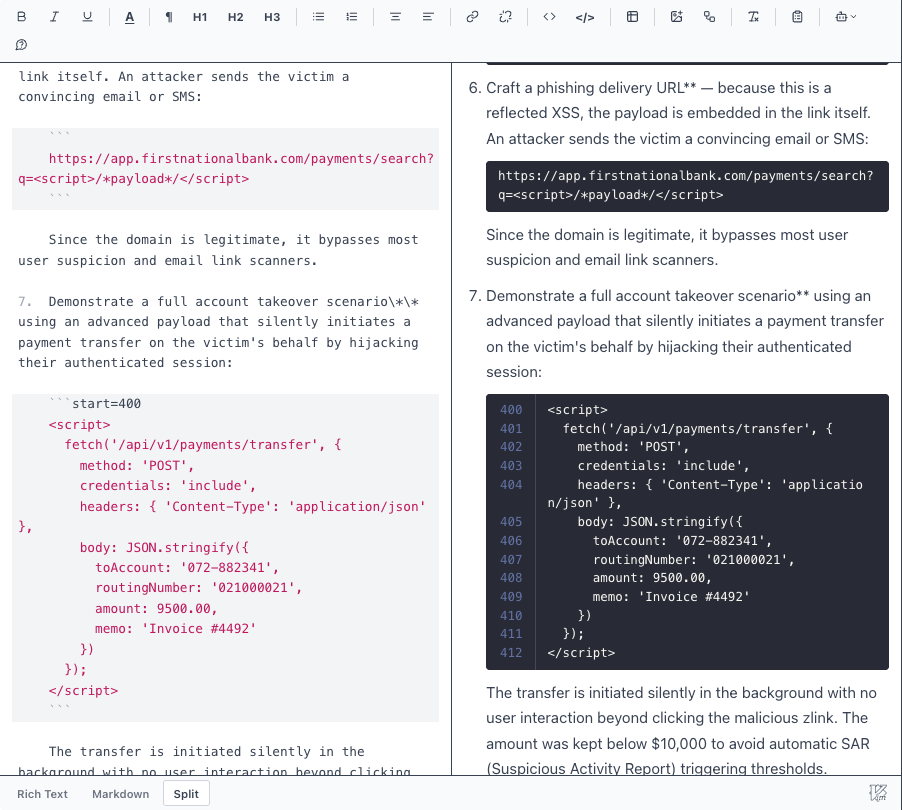
In rich-text mode you don’t need to type any Markdown. Right-click a code block and use the Line Numbers controls to turn numbering on and set the first line.
Theme code blocks to match your report template
Out of the box, code blocks use the Dracula theme. If that doesn’t match your report, you can change it.
The documentation has a Code Block Themes page with ready-made CSS for about a dozen themes, including Solarized Dark, Nord and One Dark. Copy the one you want, then go to Administration → Report Designer, select your report template, and paste it at the bottom of the CSS box:
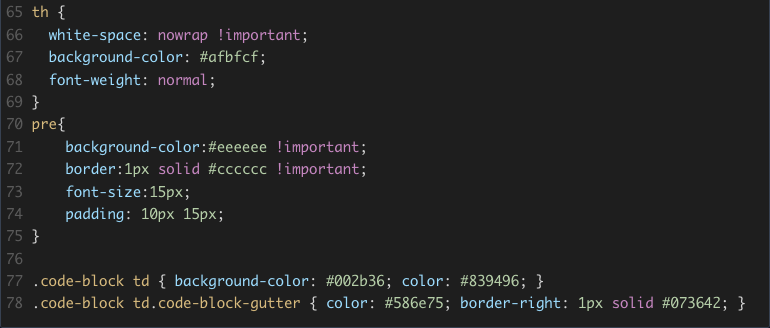
A theme is just two rules and four colours:
.code-block td { background-color: #002b36; color: #839496; }
.code-block td.code-block-gutter { color: #586e75; border-right: 1px solid #073642; }
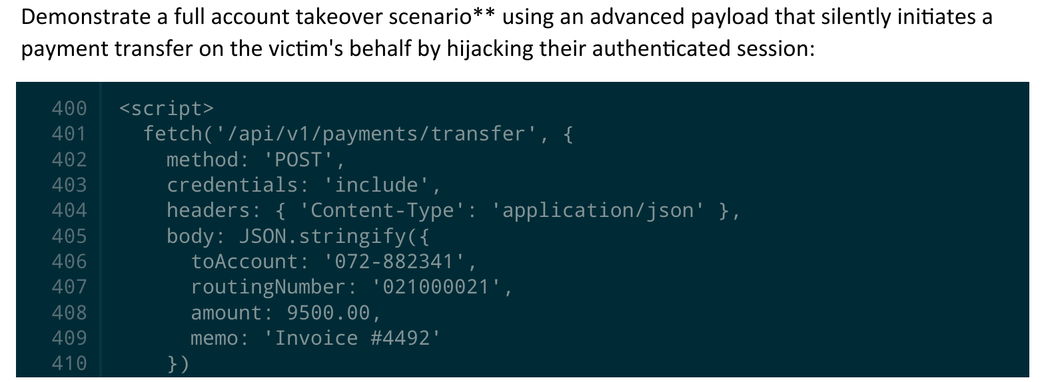
Every code block in reports generated from that template now uses those colours:
Two things worth knowing:
- The theme belongs to the report template, so different assessment types can use different themes.
- It styles the report, not the editor. The editor always shows the built-in Dracula panel, so a block looks different while you’re writing it than it does in the generated document.
It’s a small thing, but it lets the report match your brand or your personal style.
Mermaid diagrams for attack chains
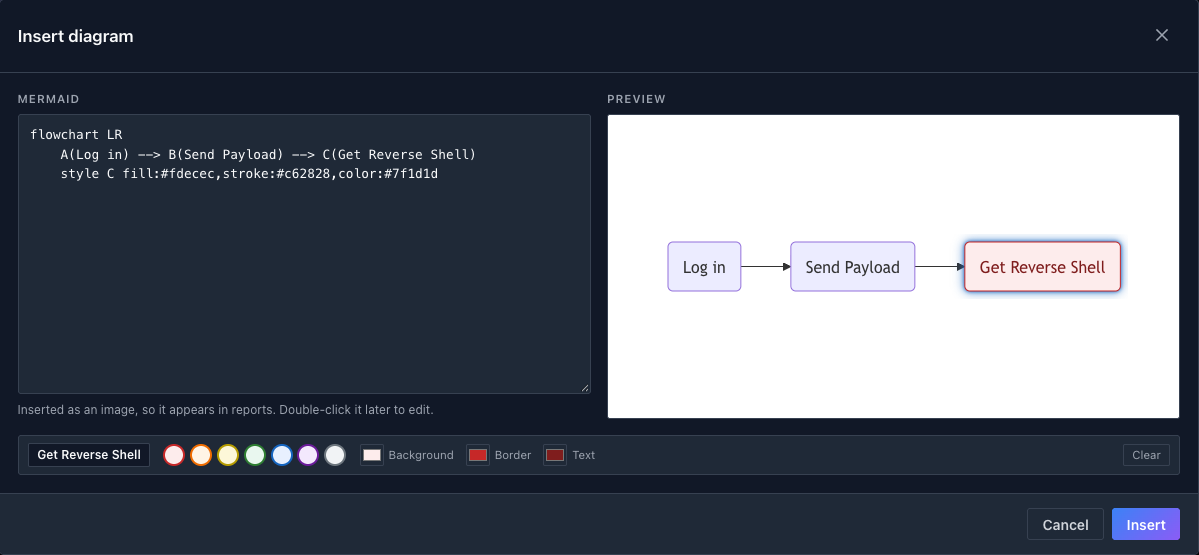
Some findings are hard to explain in prose, like a multi-step attack chain or the path from a phishing email to domain admin. For those you can now draw a Mermaid diagram right in the editor.
Click the Insert diagram button in any editor’s toolbar. You get the Mermaid source on the left and a live preview on the right. It opens with a starter flowchart; click any shape in the preview and pick a colour, and Faction writes the style line into the source for you:
For something more involved, write or paste any Mermaid you like. Here’s the attack chain from the video, built with a block-beta layout and coloured by phase:
block-beta
  columns 5

  space:5

  A("Phishing email") space B("Initial foothold") space C("Local recon")

  space space space space space

  F("Kerberoasting") space E("Lateral movement") space D("Credential access")

  space space space space space

  G("Offline cracking") space H("Privilege escalation") space I("Domain compromise") space

  space:5

  A --> B
  B --> C
  C --> D
  D --> E
  E --> F
  F --> G
  G --> H
  H --> I

  classDef coral fill:#F5C4B3,stroke:#993C1D,color:#4A1B0C
  classDef teal fill:#9FE1CB,stroke:#0F6E56,color:#04342C
  classDef purple fill:#CECBF6,stroke:#534AB7,color:#26215C
  classDef red fill:red,stroke:red,color:white

  class A,B coral
  class C,D,E teal
  class F,G,H purple
  class I red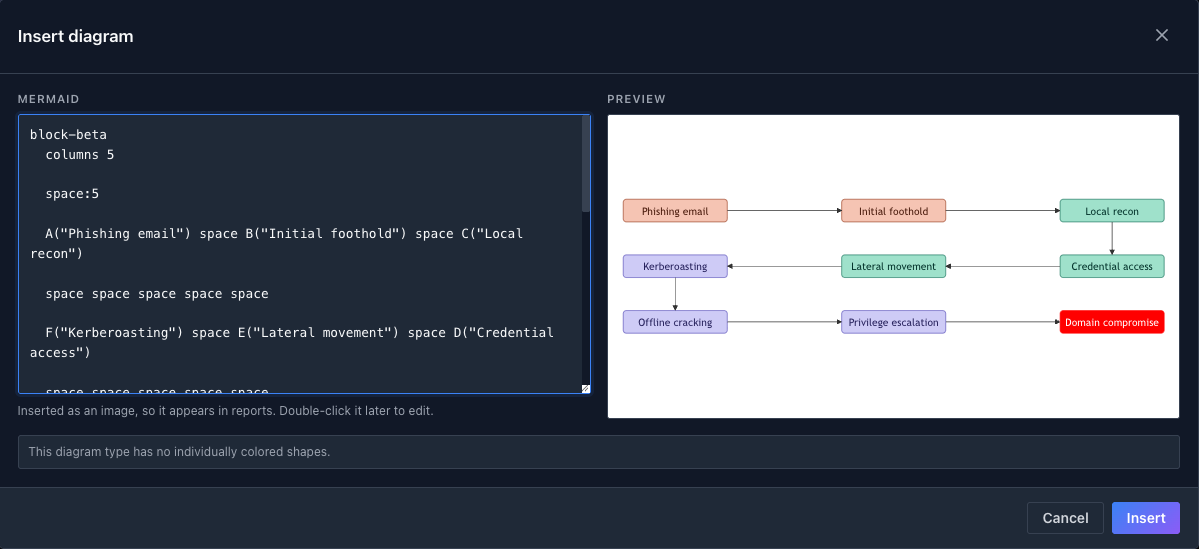
The diagram goes into your report as an image, so it looks the same in the DOCX and PDF as it does on screen:
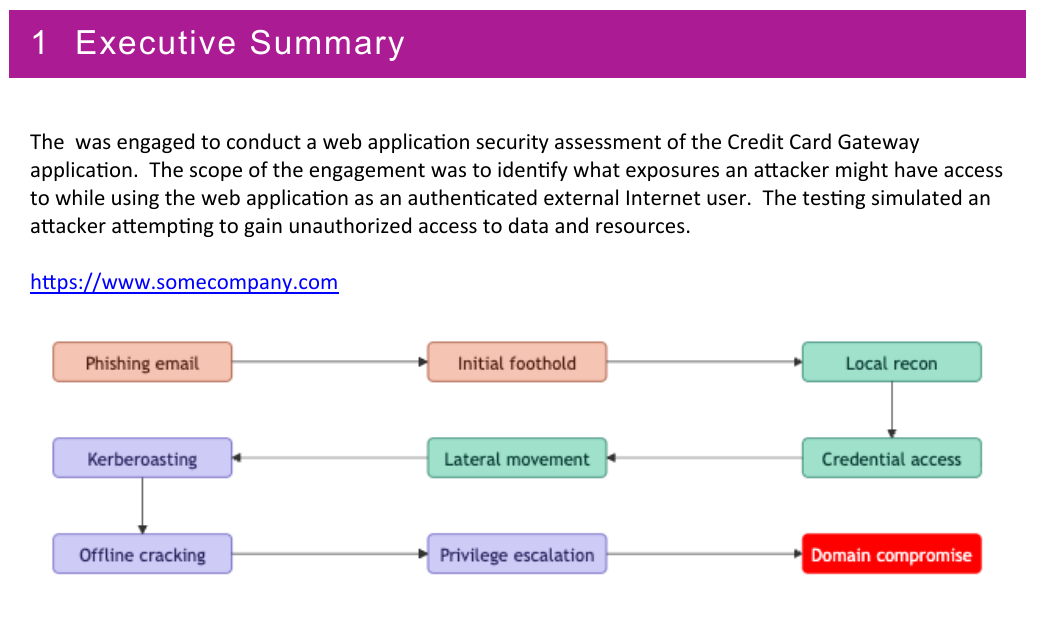
The Mermaid source is saved with the image, so you can change it later: double-click the diagram and the editor reopens with the source ready to edit.
Content templates: automate the boilerplate in pentest report writing
Faction’s AI prompts can write descriptions and executive summaries for you, but a lot of report text isn’t unique to the engagement. It’s boilerplate: your scope wording, your testing methodology, the write-up for a finding you hit on almost every internal pentest. Content templates are for that text.
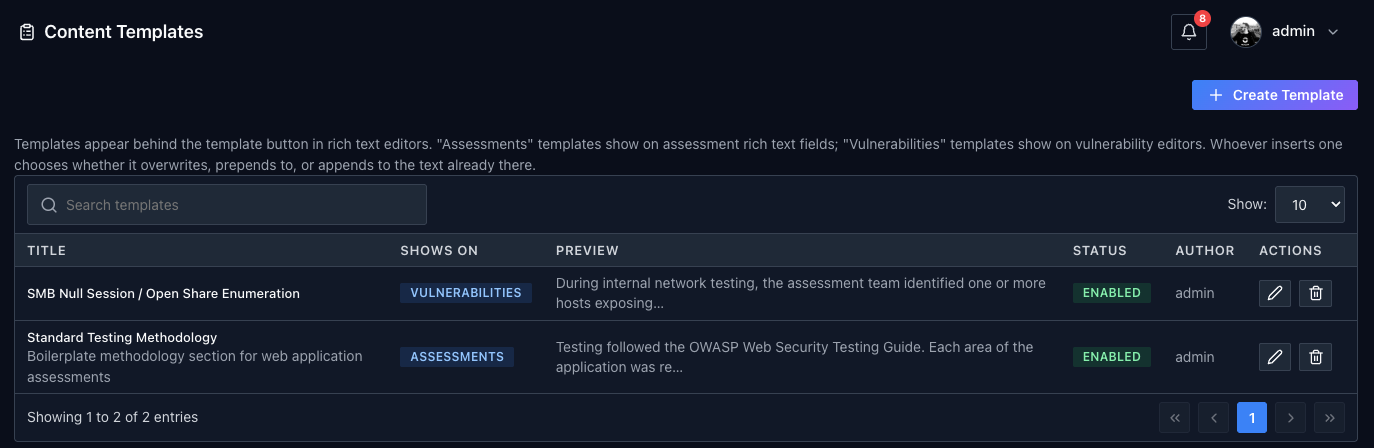
You manage them under Administration → Content Templates. Each template has a title, a description, and a Shows On setting:
- Assessments: offered in assessment editors like Scope and Executive Summary
- Vulnerabilities: offered in a finding’s Description, Recommendation, and Details editors
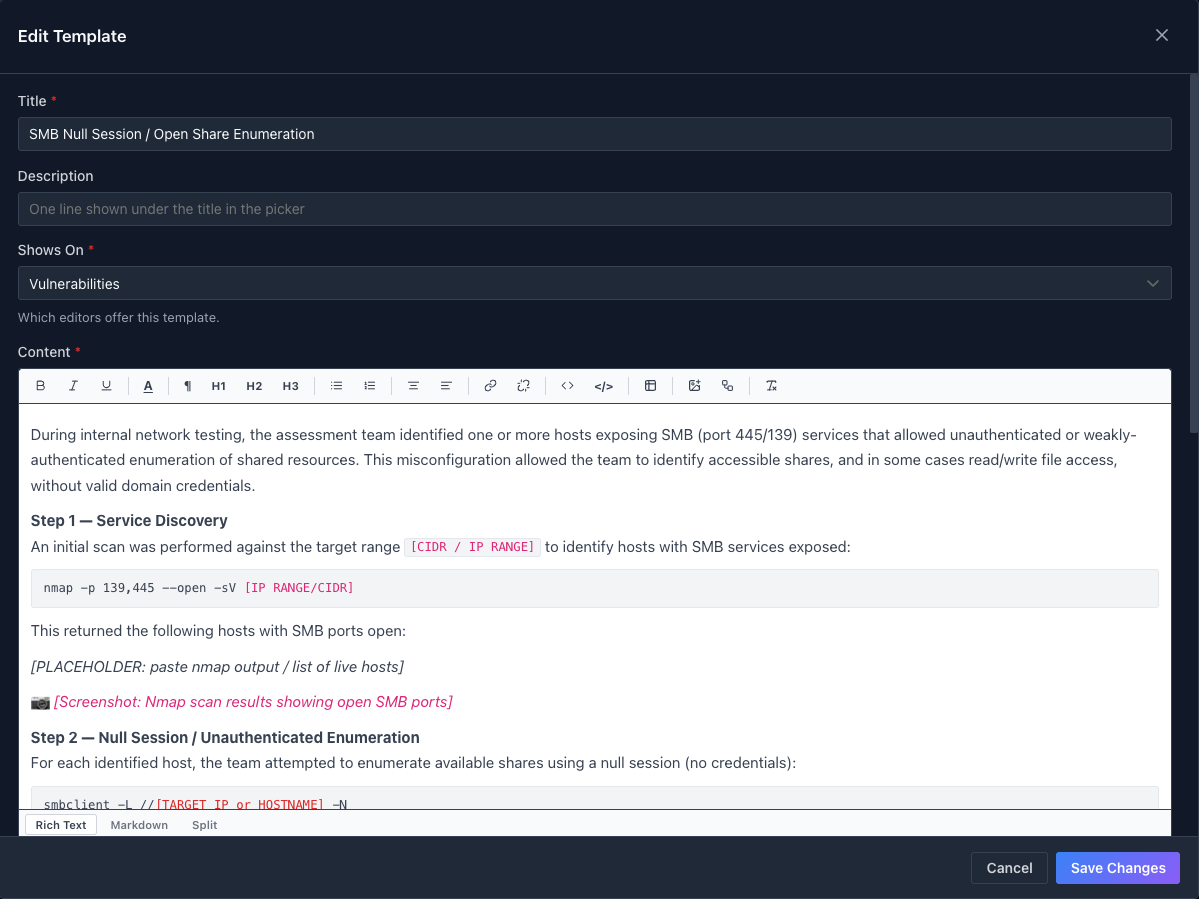
A template doesn’t have to be a paragraph of static text. It can be a full, reproducible write-up: here’s a common SMB null session finding with every step laid out, the commands in code blocks, and bracketed placeholders like [IP RANGE/CIDR] and [PLACEHOLDER: paste nmap output], so all you do is fill in the details from this engagement:
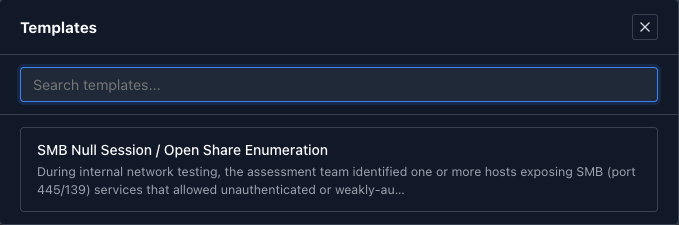
To use one, click the Insert a saved template button in the editor’s toolbar, search, and pick it. If the editor already has text, you choose whether the template overwrites it, or goes before or after it.
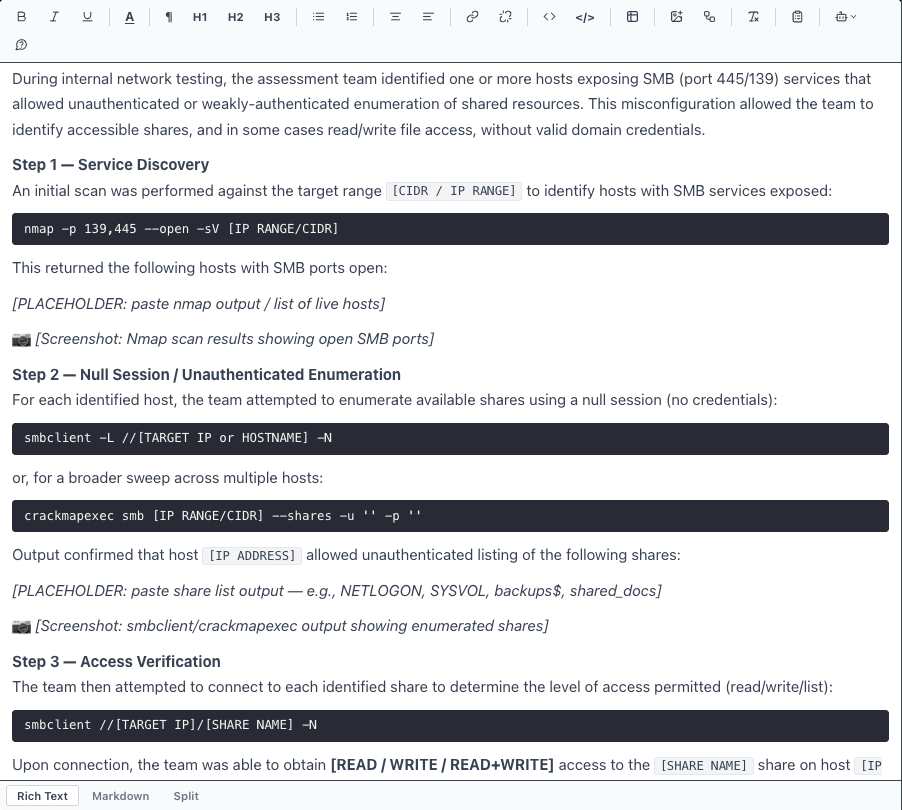
The whole methodology lands in the finding’s details, ready for your IPs, output and screenshots:
No more digging through old reports to copy and paste a good write-up. Write it once, save it as a template, and it’s two clicks away on every engagement. That’s the same idea behind Faction’s vulnerability templates and boilerplates: pentest automation for the parts of the report that shouldn’t need a human to retype them.
Watch the walkthrough
Here’s the whole thing in action, in about seven minutes:
Why this matters for pentest reporting
A pentest report is only as useful as it is readable. Line numbers point developers straight at the vulnerable code, a diagram explains an attack chain faster than three paragraphs, and templates keep your methodology and common findings consistent across every report your team ships. Together they cut the time you spend formatting and retyping, so more of the engagement goes to actual testing.
Try the open-source pentest reporting tool
All three features are available in OWASP Faction, the free and open-source pentest reporting tool, and in Faction Enterprise for teams that need more.
- Documentation, including every code block theme: https://docs.factionsecurity.com/
- OWASP Faction on GitHub: https://github.com/factionsecurity/OWASP-Faction-2
- https://www.factionsecurity.com


